Introduction
Docker has revolutionized the way we manage and deploy applications, making it easier than ever to develop and test code in isolated environments. One of the key features of Docker is the ability to use volumes to persist data, making it possible to share data between containers and host systems.
In this article, we’ll explore the use of Docker volumes in development projects and show you how they can help streamline your workflow, improve code collaboration, and make it easier to manage your application data. Whether you’re new to Docker or a seasoned user, you’ll learn how to use Docker volumes to their fullest potential and get the most out of your development projects.
I. Requirements
Before getting started with using Docker volumes in your development projects, there are a few requirements that need to be met.
- Firstly, you’ll need to have the Docker engine installed on your system.
- If you are on Linux you just need to install the docker deamon.
- If you are on Mac or Windows, you will need to use Docker-Desktop.
You can download the latest version of Docker from the official website.
- Additionally, you may need to have some basic knowledge of using the Docker CLI and working with containers.
- Finally, you may need to install additional software, such as an text editor or integrated development environment (IDE), Visual Studio Code is a good one.
II. Getting started
With the requirements met, it’s time to dive into using Docker volumes in your development projects. To get started, you’ll first need to create a Docker container to host your application
1. Dockerfile
This can be done using a Dockerfile, which is a script that defines the configuration and dependencies of your container.
Let’s create a new folder for our new project. The place where you create it could be very defferent than mine, you can choose the one that you want. Mine will be :
~/htdocs/my-project/In this new folder we will create the Dockerfile.
cd ~/htdocs/my-project/ && touch DockerfileFrom there you will have to choose the right image base for your project.
A. How to choose the right image for my project ?
When it comes to using Docker in your development projects, one of the most important decisions you’ll need to make is selecting the right Docker image. With a wide variety of images available in the Docker Hub, it can be difficult to know which one to choose. To help you make the right decision, here are a few factors to consider:
- Base image: Choose an image that is based on a well-known and widely used operating system, such as Ubuntu or Debian. This will help ensure compatibility with your application and minimize any potential compatibility issues.
- Version: Be sure to select an image that is based on the correct version of the operating system and any other required software. Make sure to check the release notes for any known issues or compatibility problems.
- Size: Consider the size of the image, as larger images will take longer to download and start, and may require more resources to run.
- Official images: When possible, choose an official image from a vendor or open source project, as these are typically well-maintained and have a strong community behind them.
- And obviously an image containing the technology you are working with.
Example with Alpine and Bullseye
Alpineis a lightweight Linux distribution commonly used as the base image for Docker containers. Alpine-based Docker images are known for their small size, making them a popular choice for developers who want to minimize the size of their containers and minimize the attack surface. A good article was written on « How to Use the Alpine Docker Official Image » here.
Bullseyeis the codename for Debian 11, which is a Linux distribution also commonly used as the base image for Docker containers as Alpine. Debian-based images, including those based on Bullseye, are known for their stability, large repository of packages, and strong community support.
Our Simple Image
Once you have choose the right base docker image, let’s start to write some lines.
First the FROM key word
FROM your-choosen-image
Then update packages informations from the repository to the local cache. It depends on the image base that you start but if you started with for example a bullseye image you can do
RUN apt-get update
It’s good practice to make sure you start with the latest package version dependencies available.
From there we will COPY all files from our root project folder in our future docker image:
COPY . /app
We choose where to put our root folder in the /app folder inside our container, but you can adapt as needed.
Build & Run
From there you have all necessary to launch your own project structure. All you have to do is build and run your docker image. For build your docker image you can run :
docker build -t my-project .Do not forget the dot character « . » at the end that indicate the current folder to your cli.
Then for running your container you have to use the run command and then go inside your container by using the cli as :
docker run -it --rm --name my-project -v ${pwd}/:/app my-project-tag /bin/bashHere we’ve done mutliple thing using options docker run cli.
-itis short for--interactive, this command takes you straight inside the container.--rmoptions tells docker run command to remove the container when it exits automatically.--nameit assign a name to the container-vbind mount a volumeproject-namethe name of our image/bin/bashentrypoint or command
B. Troubleshoot
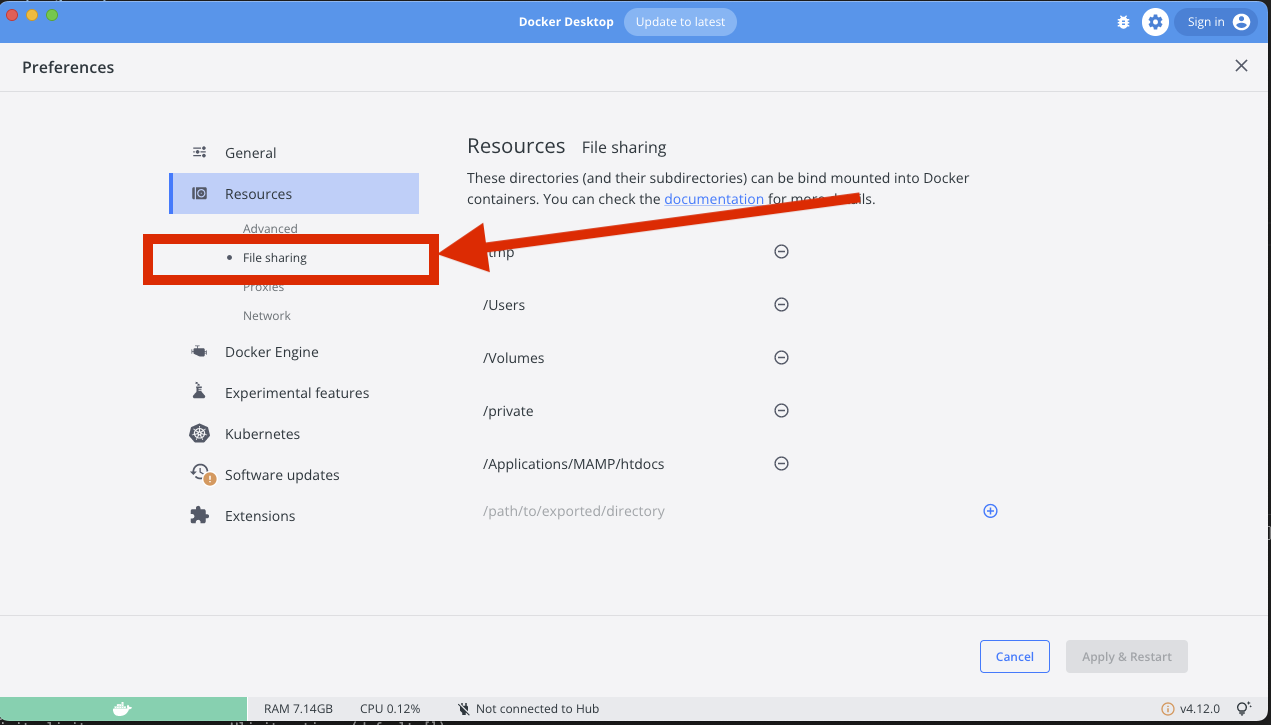
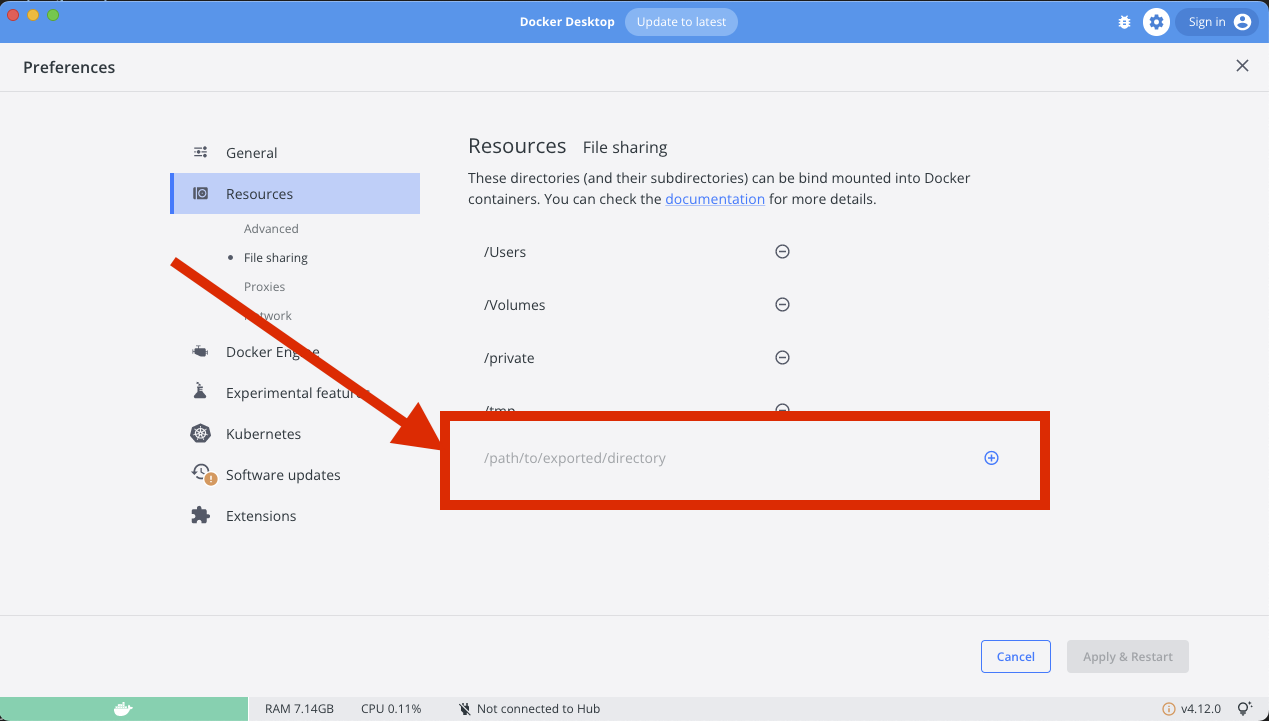
If you use Docker Desktop, you may need to allow Docker to use access to your local folder. To do this, you can do like this :
- Open your docker desktop application
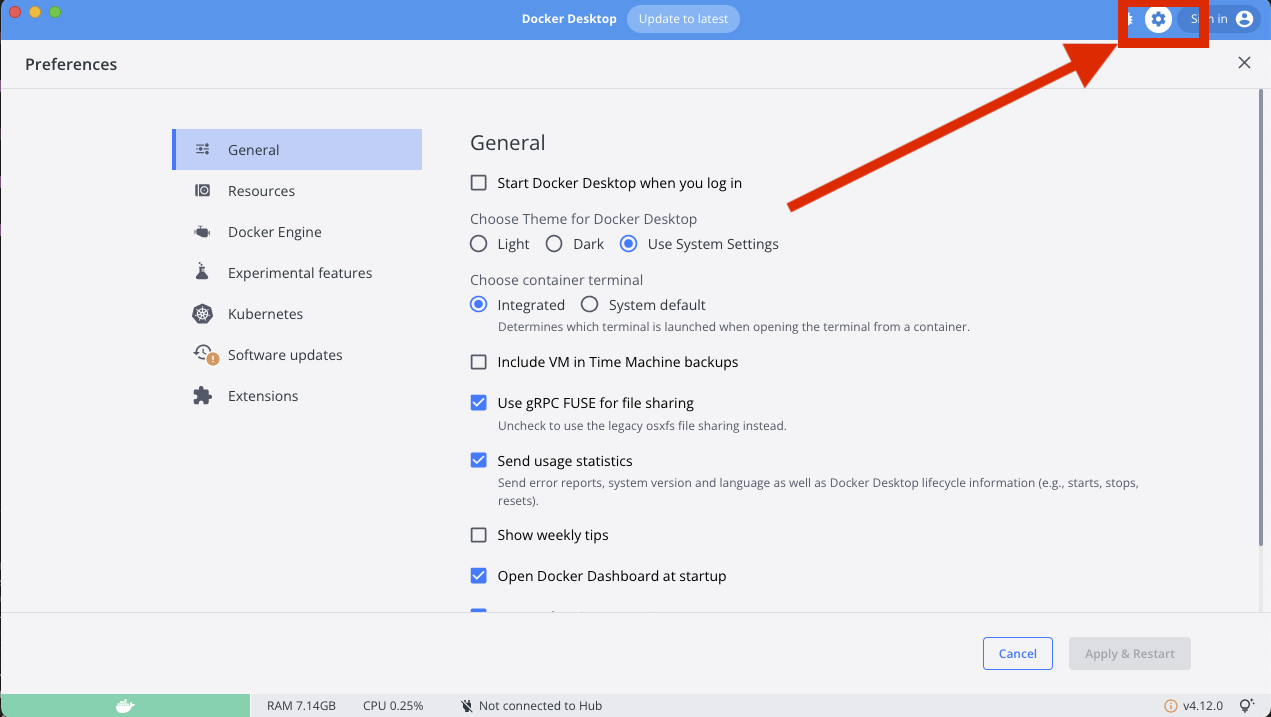
- Go to settings
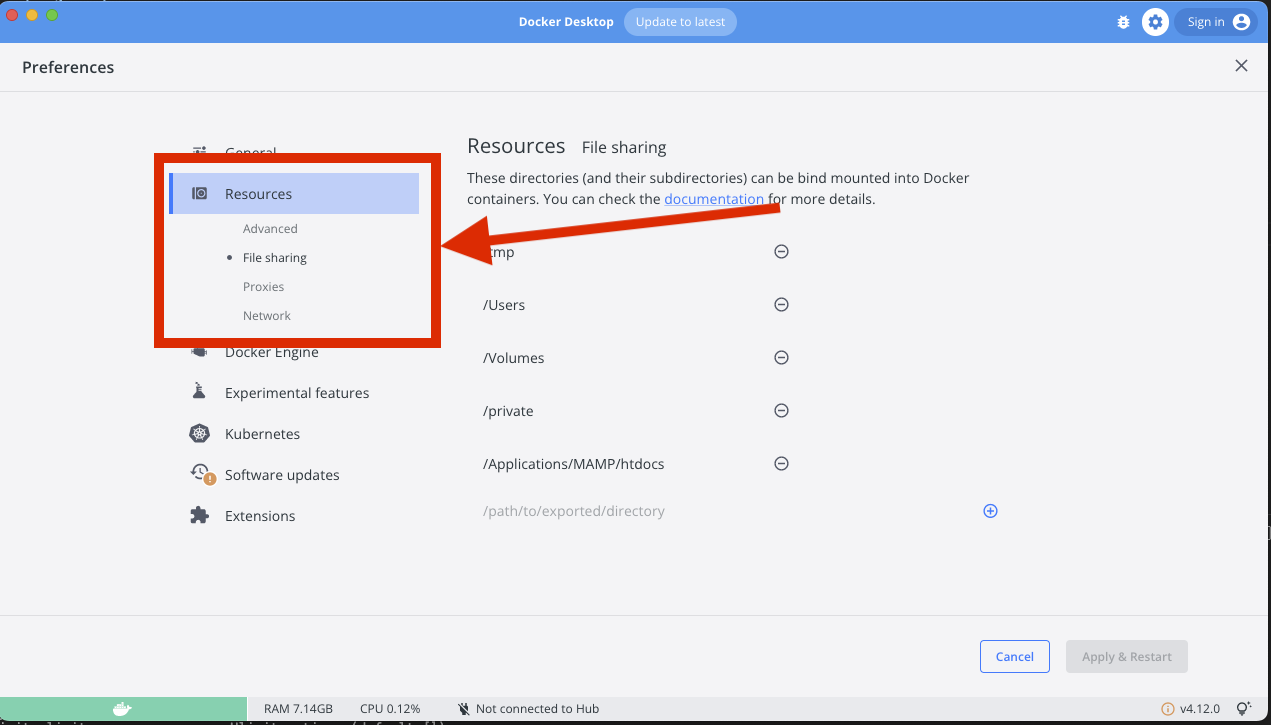
- Open Resources tab and File sharing subtab
- Then add your project folder
III. Dependencies
Dependencies are the packages and libraries that your project relies on to function properly. When building a Docker image, it’s important to include all of the dependencies that your project needs in order to run. This can include packages such as language runtimes, database drivers, and utility libraries.
There are several ways to manage dependencies in a Docker image, depending on your specific needs. Here are a few common approaches:
- Using a Package Manager: You can use a package manager, such as apt-get or yum, to install dependencies directly from a package repository. For example, you can use the following code in your Dockerfile to install dependencies using apt-get:
apt-get install -y my-dependency-package - Copying Dependency Files: You can also copy the necessary files and dependencies directly into your Docker image. For example, you could use the following code in your Dockerfile to copy dependencies from the host machine
COPY my-dependency-directory /app/dependencies - Using a Requirements File: If your project uses a requirements file, such as a pip requirements.txt file, you can use that file to specify the dependencies that your project needs. For example, you could use the following code in your Dockerfile to install dependencies from a pip requirements file:
COPY requirements.txt /app
RUN pip install -r requirements.txt
These are just a few examples of the different ways you can manage dependencies in a Docker image. When choosing a approach, it’s important to consider the size of your image, the security of your dependencies, and the ease of maintenance.
IV. Customizations
There are several ways to make customizations to your Docker container, including environment variables, volume mounts, and the Dockerfile itself. When customizing your container, it is important to consider the following:
- What are the specific requirements of your project?
- What tools and libraries will you need to include in your container?
- What environment variables do you need to set up?
By taking these factors into account, you can make informed decisions about how to customize your Docker container to meet the specific needs of your project.
Here are some common customizations you can make to your Docker container:
- Environment variables: These are values that are passed to the Docker container when it starts. You can use environment variables to configure the behavior of your container or to pass sensitive information such as database credentials.
- Volume mounts: By mounting a volume to your Docker container, you can persist data across multiple runs of the container. This is particularly useful for data such as logs or uploaded files.
- Dockerfile: The Dockerfile is the recipe for building your Docker container. By making changes to the Dockerfile, you can install additional libraries or tools, set environment variables, or make other customizations to the container.
By making these customizations, you can ensure that your Docker container is set up exactly as you need it to be for your project.
V. Best Practices
Generality
We prefer to use Dockerfile command order like this:
- FROM
- ARG
- ENV, LABEL
- VOLUME
- RUN, COPY, WORKDIR
- EXPOSE
- USER
- ONBUILD
- CMD, ENTRYPOINT
In no instruction we will use sudo.
FROM
The Dockerfile will contain a single FROM statement and we will specify the version number
RUN
We will avoid changing the current path with the RUN statement and instead use the wordkir statement.
CMD and ENTRYPOINT
The Dockerfile will contain a single CMD or ENTRYPOINT statement.
EXPOSE
We will try to use the EXPOSE command to clearly indicate which ports the application uses.
ADD and COPY
We will systematically use the COPY instruction to avoid unpredictable behavior related to the automatic decompression of the tar archives of the ADD instruction
There are tons of others. I wouldn’t want to confuse you with a too long article so I strongly advise you to go more in depth with the docker documentation : Best Pratices.
1. Exemple of a simple starting image
FROM node:18.13.0-bullseye

RUN apt-get update

COPY ./ /app

RUN useradd -ms /bin/bash myuser

USER myuser

WORKDIR /app

CMD ["yarn", "start"]
Thanks to this image, we are able to build a node project without any node installation on our local environment. All we could do is run the image, go inside the container and run for example. :
npx create-react-app my-projectConclusion
By using Docker volumes, you can easily manage dependencies and customizations, as well as ensure consistency and reproducibility of your project environment. In this article, we discussed the requirements and steps for getting started with Docker volumes, as well as some tips for choosing the right Docker image and best practices for using Docker volumes in development.
You have noticed that this article is a very big summary of a real work of optimization and customizations. With that in mind, you can go further by sharing your knowledge in the comments or with the docker documentation.